Provides Syncfusion® Blazor dropdown and selection components including AutoComplete, ComboBox, DropDownList, ListBox, and MultiSelect controls. Supports data binding, filtering, grouping, cascading, templates, and accessibility features for building robust selection interfaces.
Install
| Product | Versions |
|---|---|
| .NET |
README
Syncfusion® Blazor DropDown Components
A comprehensive suite of Blazor dropdown and selection components for single/multi-select, autocomplete, and list-based input. Includes DropDownList, MultiSelect Dropdown, ListBox, ComboBox, AutoComplete, and Mention components.
Supported Components
This package includes the following components:
- Blazor DropDownList
- Blazor MultiSelect Dropdown
- Blazor ListBox
- Blazor ComboBox
- Blazor AutoComplete
- Blazor Mention
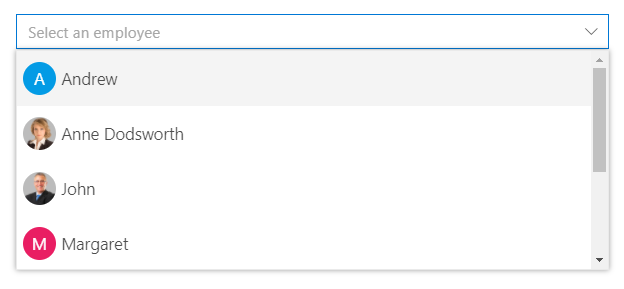
Blazor DropDownList Component
The Blazor DropDownList Component is a replacement for HTML select tags with rich styling and powerful data binding capabilities.
Key Features:
- Data Binding: Bind to local arrays, IEnumerable, API responses, and observable collections
- Single Selection: Non-editable selection of one value from a predefined list
- Filtering: Real-time text search with highlight matching in dropdown
- Grouping: Group items by category or custom field with collapsible groups
- Templates: Custom item , header , footer and value templates for rich content rendering
- Cascading: Dependent dropdowns with hierarchical data relationships
- Keyboard Navigation: Full keyboard support (Arrow keys, Enter, Escape) for accessibility
- UI Customization: Custom CSS, themes, and styling options for seamless integration
- Virtual Scrolling: Efficiently handles large datasets by loading items on demand, ensuring smooth scrolling performance
Documentation:
- Getting Started with Blazor Web App
- Getting Started with Blazor WebAssembly App
- Feature Overview
- Live Demos
- API Reference
Blazor MultiSelect Dropdown Component
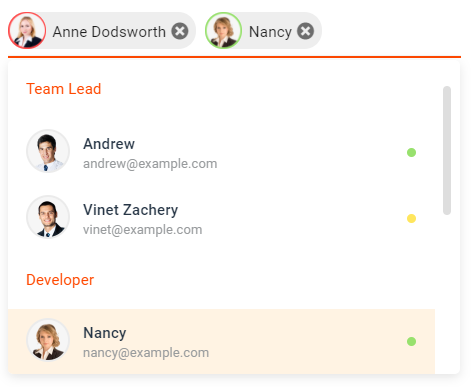
The Blazor MultiSelect Dropdown Component enables selection of multiple values with checkboxes, tags display, and text filtering.
Key Features:
- Multi-Select Support: Select and deselect multiple items simultaneously
- Checkbox Mode: Visual checkboxes for clear selection state indication
- Tag Display: Selected values shown as removable tags in input area
- Text Filtering: Type to filter and search within the dropdown list
- Grouping: Organize items into collapsible category groups
- Custom Tagging: Allow users to add custom values beyond predefined options
- Select All: Bulk selection/deselection of all available items
- Accessibility: Full keyboard navigation and ARIA support for screen readers
- Virtual Scrolling: Efficiently handles large datasets by loading items on demand, ensuring smooth scrolling performance
Documentation:
Blazor ListBox Component
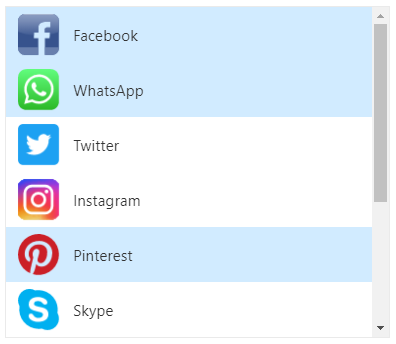
The Blazor ListBox Component displays a scrollable list of items with multi-selection, drag-drop, and reordering capabilities.
Key Features:
- Multi-Selection: Select one or multiple items with checkbox support
- Drag and Drop: Reorder items within the list or between ListBoxes
- Keyboard Navigation: Arrow keys, Shift+Click, and Ctrl+Click for multi-selection
- Sorting: Built-in ascending/descending sort functionality
- Grouping: Organize items into category groups with collapsible headers
- Reordering: Move selected items up/down with toolbar buttons
- Custom Templates: Rich templates for item rendering with HTML content
- Accessibility: Full keyboard support and ARIA labels for screen readers
Documentation:
- Getting Started with Blazor Web App
- Getting Started with Blazor WebAssembly App
- Feature Overview
- Live Demos
- API Reference
Blazor ComboBox Component
The Blazor ComboBox Component is an editable dropdown combining text input with a filtered suggestion list for flexible selection.
Key Features:
- Editable Input: Type custom values or select from predefined options
- Filtering: Real-time search and filtering as user types in the input
- Data Binding: Support for arrays, API data, and observable collections
- Grouping: Organize dropdown items into category groups
- Cascading: Link multiple ComboBoxes for dependent data relationships
- Custom Templates: Rich item and header templates for enhanced presentation
- Keyboard Navigation: Full keyboard support with autocomplete suggestions
- Accessibility: ARIA labels, screen reader support, and keyboard-only navigation
- Virtual Scrolling: Efficiently handles large datasets by loading items on demand, ensuring smooth scrolling performance

Documentation:
- Getting Started with Blazor Web App
- Getting Started with Blazor WebAssembly App
- Feature Overview
- Live Demos
- API Reference
Blazor AutoComplete Component
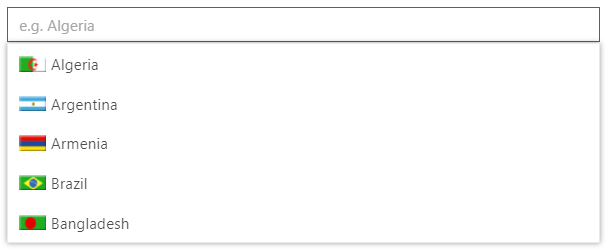
The Blazor AutoComplete Component provides intelligent suggestions as users type, streamlining data entry with predictive input.
Key Features:
- Typeahead Suggestions: Display matching items as user types for faster selection
- Text Filtering: Highlight matching text with case-sensitive and case-insensitive options
- Data Binding: Bind to arrays, IEnumerable, API responses, and observables
- Grouping: Organize suggestions into category groups with headers
- Debounce Support: Optimize performance with configurable debounce intervals
- Min Characters: Require minimum characters before showing suggestions
- Custom Templates: Rich templates for suggestion rendering with HTML content
- Accessibility: Full keyboard navigation and ARIA support for screen readers
- Virtual Scrolling: Efficiently handles large datasets by loading items on demand, ensuring smooth scrolling performance
Documentation:
- Getting Started with Blazor Web App
- Getting Started with Blazor WebAssembly App
- Feature Overview
- Live Demos
- API Reference
Blazor Mention Component
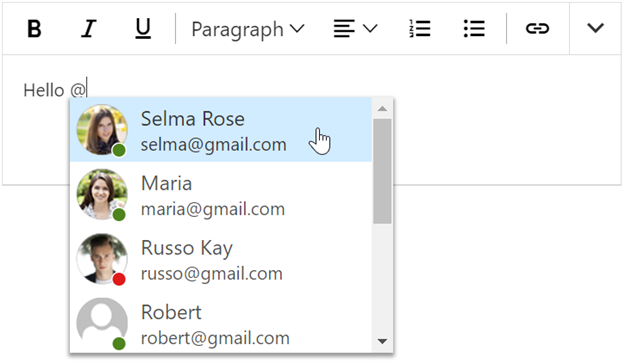
The Blazor Mention Component enables user tagging and mentions similar to social media platforms, triggered by @ or custom symbols.
Key Features:
- Mention Triggers: Customize mention character (@ by default) to activate suggestions
- Tagging Support: Tag users or items with @ mention similar to Facebook and Twitter
- Suggestion List: Display filtered suggestions as user types the mention character
- Data Binding: Bind to arrays, API data, and observable collections for mentions
- Grouping: Organize mentions into category groups with collapsible headers
- Custom Patterns: Support multiple mention patterns (@ for users, # for topics, etc.)
- Rich Templates: Custom templates for rendering mention suggestions and content
- Accessibility: Full keyboard navigation and ARIA support for screen readers
Documentation:
- Getting Started with Blazor Web App
- Getting Started with Blazor WebAssembly App
- Feature Overview
- Live Demos
- API Reference
System Requirements
- .NET 8.0 or later (Blazor Web App, Blazor Server, Blazor WebAssembly and Blazor Hybrid)
- See full requirements: System Requirements.
Installation
.NET CLI
dotnet add package Syncfusion.Blazor.DropDowns
NuGet Package Manager
Install-Package Syncfusion.Blazor.DropDowns
Add stylesheet and script references
- For Blazor Server App / Blazor Web App, add these to
Components/App.razororApp.razor. - For Blazor WebAssembly App: add these to
wwwroot/index.html.
<link href="_content/Syncfusion.Blazor.Themes/bootstrap5.css" rel="stylesheet" />
<script src="_content/Syncfusion.Blazor.Core/scripts/syncfusion-blazor.min.js" type="text/javascript"></script>
Quick Start
Register the Syncfusion® Blazor services in Program.cs:
using Syncfusion.Blazor;

builder.Services.AddSyncfusionBlazor();
AutoComplete
<SfAutoComplete TValue="string" TItem="Country" Placeholder="e.g. Australia" DataSource="@LocalData">
    <AutoCompleteFieldSettings Value="Name" />
</SfAutoComplete>

@code {

    public class Country
    {
        public string Name { get; set; }
        public string Code { get; set; }
    }

    List<Country> LocalData = new List<Country> {
        new Country() { Name = "Australia", Code = "AU" },
        new Country() { Name = "Bermuda", Code = "BM" },
        new Country() { Name = "Canada", Code = "CA" },
        new Country() { Name = "Cameroon", Code = "CM" },
        new Country() { Name = "Denmark", Code = "DK" }
    };
}
ComboBox
<SfComboBox TValue="string" TItem="Games" Placeholder="Select a game" DataSource="@LocalData">
    <ComboBoxFieldSettings Value="ID" Text="Text"></ComboBoxFieldSettings>
</SfComboBox>

@code {
  public class Games
  {
    public string ID { get; set; }
    public string Text { get; set; }
  }
  List<Games> LocalData = new List<Games> {
    new Games() { ID= "Game1", Text= "American Football" },
    new Games() { ID= "Game2", Text= "Badminton" },
    new Games() { ID= "Game3", Text= "Basketball" },
    new Games() { ID= "Game4", Text= "Cricket" },
    new Games() { ID= "Game5", Text= "Football" },
    new Games() { ID= "Game6", Text= "Golf" },
    new Games() { ID= "Game7", Text= "Hockey" },
    new Games() { ID= "Game8", Text= "Rugby"},
    new Games() { ID= "Game9", Text= "Snooker" },
    new Games() { ID= "Game10", Text= "Tennis"},
  };
}
DropDownList
<SfDropDownList TValue="string" TItem="Games" Placeholder="Select a game" DataSource="@LocalData">
  <DropDownListFieldSettings Value="ID" Text="Text"></DropDownListFieldSettings>
</SfDropDownList>

@code {
  public class Games
  {
    public string ID { get; set; }
    public string Text { get; set; }
  }
  List<Games> LocalData = new List<Games> {
    new Games() { ID= "Game1", Text= "American Football" },
    new Games() { ID= "Game2", Text= "Badminton" },
    new Games() { ID= "Game3", Text= "Basketball" },
    new Games() { ID= "Game4", Text= "Cricket" },
    new Games() { ID= "Game5", Text= "Football" },
    new Games() { ID= "Game6", Text= "Golf" },
    new Games() { ID= "Game7", Text= "Hockey" },
    new Games() { ID= "Game8", Text= "Rugby"},
    new Games() { ID= "Game9", Text= "Snooker" },
    new Games() { ID= "Game10", Text= "Tennis"},
  };
}
ListBox
<SfListBox TValue="string[]" DataSource="@Vehicles" TItem="VehicleData">
    <ListBoxFieldSettings Text="Text" Value="Id" />
</SfListBox>
@code {
    public List<VehicleData> Vehicles = new List<VehicleData> {
        new VehicleData { Text = "Hennessey Venom", Id = "Vehicle-01" },
        new VehicleData { Text = "Bugatti Chiron", Id = "Vehicle-02" },
        new VehicleData { Text = "Bugatti Veyron Super Sport", Id = "Vehicle-03" },
        new VehicleData { Text = "SSC Ultimate Aero", Id = "Vehicle-04" },
        new VehicleData { Text = "Koenigsegg CCR", Id = "Vehicle-05" },
        new VehicleData { Text = "McLaren F1", Id = "Vehicle-06" },
        new VehicleData { Text = "Aston Martin One- 77", Id = "Vehicle-07" },
        new VehicleData { Text = "Jaguar XJ220", Id = "Vehicle-08" }
    };

    public class VehicleData {
      public string Text { get; set; }
      public string Id { get; set; }
    }
}
Mention
<SfMention TItem="PersonData" DataSource="@EmailData">
    <TargetComponent>
        <div id="commentsMention" placeHolder="Type @@ and tag user" ></div>
    </TargetComponent>
    <ChildContent>
        <MentionFieldSettings Text="Name"></MentionFieldSettings>
    </ChildContent>
</SfMention>
<style>
    #commentsMention {
        min-height: 100px;
        border: 1px solid #D7D7D7;
        border-radius: 4px;
        padding: 8px;
        font-size: 14px;
        width: 600px;
    }

    div#commentsMention[placeholder]:empty:before {
        content: attr(placeholder);
        color: #555;
    }
</style>
@code {
    public class PersonData
    {
        public string Name { get; set; }
        public string EmailId { get; set; }
        public string EmployeeImage { get; set; }
    }
    List<PersonData> EmailData = new List<PersonData> {
    new PersonData() { Name="Selma Rose", EmployeeImage="7", EmailId="[email protected]" },
    new PersonData() { Name="Russo Kay", EmployeeImage="8", EmailId="[email protected]" },
    new PersonData() { Name="Camden Kate", EmployeeImage="9", EmailId="[email protected]" }
  };
}
MultiSelect
<SfMultiSelect TValue="string[]" TItem="Games" Placeholder="Favorite Sports" DataSource="@LocalData">
    <MultiSelectFieldSettings Text="Text" Value="ID"></MultiSelectFieldSettings>
</SfMultiSelect>

@code {

    public class Games
    {
        public string ID { get; set; }
        public string Text { get; set; }
    }
    List<Games> LocalData = new List<Games> {
    new Games() { ID= "Game1", Text= "American Football" },
    new Games() { ID= "Game2", Text= "Badminton" },
    new Games() { ID= "Game3", Text= "Basketball" },
    new Games() { ID= "Game4", Text= "Cricket" },
    new Games() { ID= "Game5", Text= "Football" },
    new Games() { ID= "Game6", Text= "Golf" },
    new Games() { ID= "Game7", Text= "Hockey" },
    new Games() { ID= "Game8", Text= "Rugby"},
    new Games() { ID= "Game9", Text= "Snooker" },
    new Games() { ID= "Game10", Text= "Tennis"},
    };
}
Support
License
This is a commercial product and requires a paid license for possession or use. Review the Syncfusion® EULA.
About Syncfusion®
Syncfusion® provides 1600+ UI components and frameworks for web, mobile, and desktop development across multiple platforms:
Web: Blazor | ASP.NET Core | ASP.NET MVC | JavaScript | Angular | React | Vue
Desktop: WinForms | WPF | WinUI
Learn more at www.syncfusion.com.
[email protected] | Toll Free: 1-888-9-DOTNET
Changes from Previous Version
Adoption Assessment
A verified publisher signal is available. Assess fit from the package's supported frameworks, license and dependency graph rather than popularity alone.
Related Guides & Workflows
Learn how to evaluate, integrate, or audit this package in your .NET project.