
Material.Icons.Avalonia
Avalonia control for display material icons from Material.Icons
Install
| Product | Versions |
|---|---|
| .NET Standard |
README
Material.Icons
Parsed icons set from materialdesignicons.com and display control implementations for different GUI frameworks.
- All icons are always up-to-date because automatically updated every 6 hours.
- Small package size because icons are graphically encoded via SVG Path.
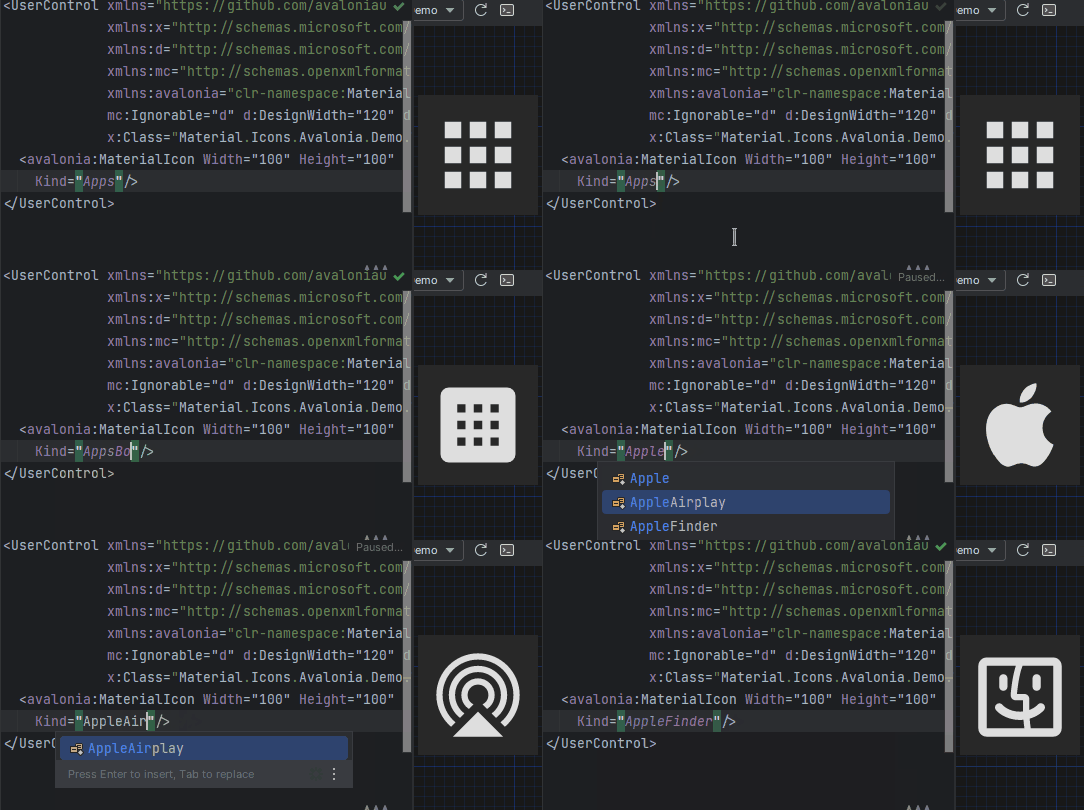
- Icon types are strongly typed enum, so your IDE will suggest available variants:
Structure
This project consists of 3 parts:
contains info about the icons
contains controls for AvaloniaUI
contains controls for WPF
FAQ - frequently asked questions
Avalonia
Getting started
- Install Material.Icons.Avalonia nuget package:
dotnet add package Material.Icons.Avalonia - Include styles in
App.xaml(for2.0.0version and higher):
For<Application xmlns:materialIcons="clr-namespace:Material.Icons.Avalonia;assembly=Material.Icons.Avalonia" ...> <Application.Styles> ... <materialIcons:MaterialIconStyles /> </Application.Styles> </Application>1.*.*:<Application ...> <Application.Styles> ... <StyleInclude Source="avares://Material.Icons.Avalonia/App.xaml" /> </Application.Styles> </Application>


Using
Add Material.Icons.Avalonia namespace to the root element of your file (your IDE can suggest it or do it automatically):
xmlns:materialIcons="clr-namespace:Material.Icons.Avalonia;assembly=Material.Icons.Avalonia"
Use MaterialIcon control:
<materialIcons:MaterialIcon Kind="Abacus" />
The Foreground property controls the color of the icon.
Also, there is MaterialIconExt which allows you to use is as the markup extension:
<Button Content="{materialIcons:MaterialIconExt Kind=Abacus}" />
WPF
Getting started
Install Material.Icons.WPF nuget package:
dotnet add package Material.Icons.WPF


Using
Add Material.Icons.WPF namespace to the root element of your file (your IDE can suggest it or do it automatically):
xmlns:materialIcons="clr-namespace:Material.Icons.WPF;assembly=Material.Icons.WPF"
Use MaterialIcon control:
<materialIcons:MaterialIcon Kind="Abacus" />
The Foreground property controls the color of the icon.
Also, there is MaterialIconExt which allows you to use is as the markup extension:
<Button Content="{materialIcons:MaterialIconExt Kind=Abacus}" />
Meta
Getting started
Install Material.Icons nuget package:
dotnet add package Material.Icons


Using
Icon types stored in Material.Icons.MaterialIconKind enum.
We can resolve an icon path by using Material.Icons.MaterialIconDataProvider.GetData().
FAQ
How to change icon color?
- Change
Foregroundproperty.
How to update icons?
- You can manually set
Material.Iconspackage version in your project file.
What about versioning policy?
- We use semver.
Any package with identical major and minor versions is compatible.
For example,1.0.0and1.0.1are compatible, but1.0.0and1.1.0might not be.
Changes from Previous Version
Adoption Assessment
Assess this package against its supported frameworks, license, maintenance signals and dependency graph before making it a project standard.
Related Guides & Workflows
Learn how to evaluate, integrate, or audit this package in your .NET project.