Get Started
| Product | Versions |
|---|---|
| .NET |
README
Iciclecreek.Avalonia.WindowManager


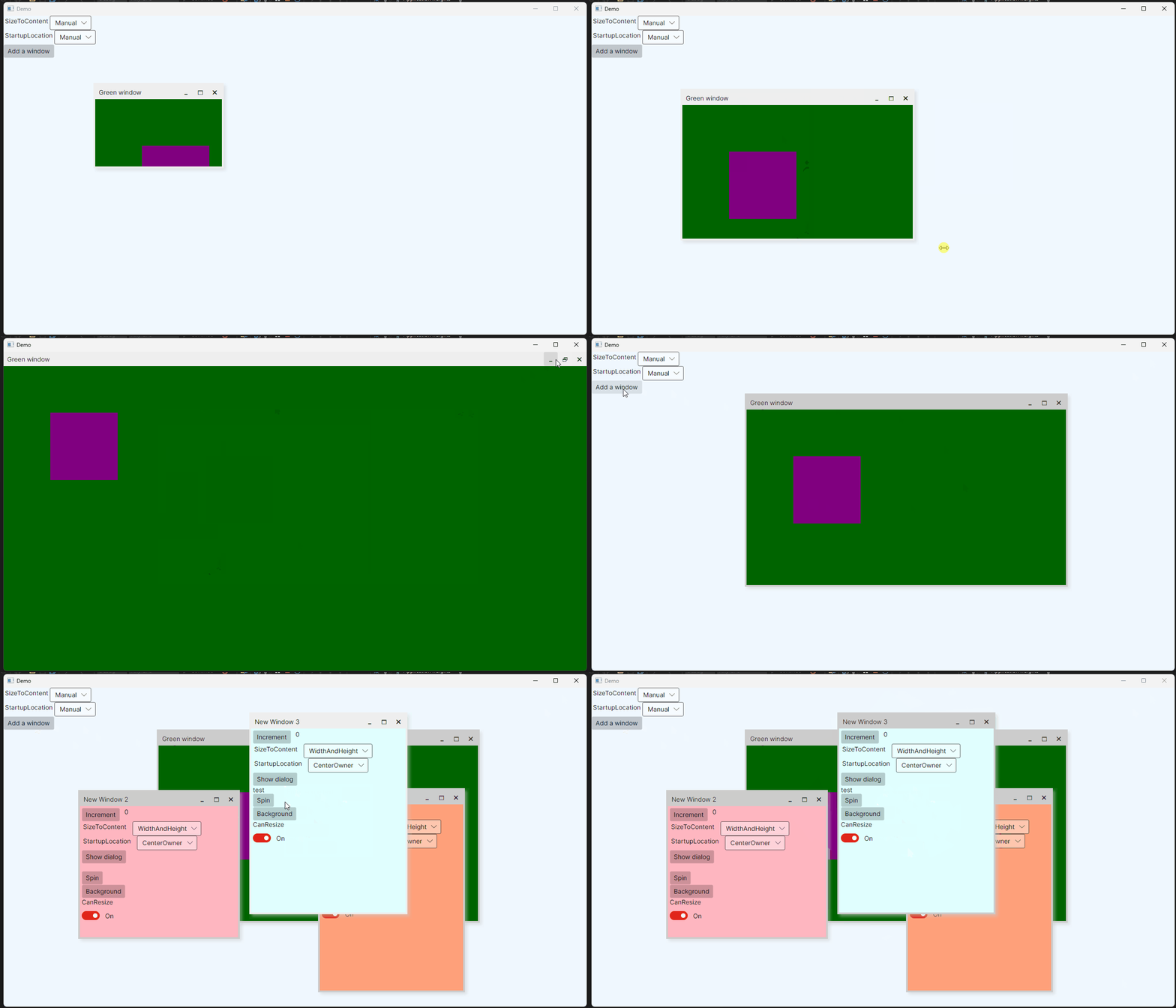
This library implements a window manager for Avalonia 12.x with windows defined using Avalonia instead of native windows. This gives you the ability to create MDI style user interfaces in Avalonia, even in environments which don't support windowing like Android and iOS.
Installation
To install you need to add a reference to the nuget package Iciclecreek.Avalonia.WindowManager
dotnet add package Iciclecreek.Avalonia.WindowManager
Usage
This library defines the following controls:
- WindowsPanel - a panel which hosts managed windows
- ManagedWindow - a window implementation which is 100% Avalonia controls (no system windows).
- PortableWindow - a portable window abstraction that automatically uses native system windows on desktop or managed windows on mobile/console.
WindowsPanel control
The WindowsPanel control creates a region that hosts multiple windows. Simply add it to your main view xaml.
<wm:WindowsPanel x:Name="Windows"/>
ManagedWindow control
The ManagedWindow control is a clone of the Window control. It has standard Window properties like Title, WindowState, WindowStartupLocation, Position, etc. Instead of being hosted using Native windows, a ManagedWindow control is hosted via the Avalonia Overlay system.
Showing a window
To show a window you need to get an instance of the WindowsPanel and call Show().
For example:
   var window = new ManagedWindow()
   {
       Title = "My window",
       WindowStartupLocation=WindowStartupLocation.CenterScreen,
       Width=300, Height=300
   };
   Windows.Show(window);
To close a window you simply call window.Close().
Showing a Dialog
To show a dialog is exactly the same as Avalonia, you instantiate a ManagedWindow and call .ShowDialog() passing in the parent window.
   var dialogWindow = new ManagedWindow()
   {
       Title = "My window",
       WindowStartupLocation=WindowStartupLocation.CenterScreen,
       Width=300, Height=300
   };
   var result = await dialogWindow.ShowDialog<string>(parent);
To close a dialog you call Close(result);
PortableWindow control
The PortableWindow control is a portable window abstraction that lets you write a single window class that works across all platforms. When you call Show() or ShowDialog(), it automatically creates the appropriate host:
- On desktop (Windows/macOS/Linux) � a native system Window is used
- On mobile/single-view/Console (Android/iOS/browser) � a ManagedWindow is used
Derive your window classes from PortableWindow instead of Window or ManagedWindow to get automatic platform-appropriate windowing.
Defining a PortableWindow
<wm:PortableWindow xmlns="https://github.com/avaloniaui"
                    xmlns:x="http://schemas.microsoft.com/winfx/2006/xaml"
                    xmlns:wm="using:Iciclecreek.Avalonia.WindowManager"
                    x:Class="MyApp.MyPortableWindow"
                    Title="My Window"
                    Width="400" Height="300">
    <TextBlock Text="Hello from a portable window!" />
</wm:PortableWindow>
Showing a PortableWindow
   var window = new MyPortableWindow()
   {
       Title = "My window",
       WindowStartupLocation = WindowStartupLocation.CenterScreen,
       Width = 300, Height = 300
   };
   window.Show(parent);
To close a window you simply call window.Close().
Showing a PortableWindow as a Dialog
   var dialog = new MyPortableWindow()
   {
       Title = "My dialog",
       WindowStartupLocation = WindowStartupLocation.CenterOwner,
       Width = 300, Height = 200
   };
   var result = await dialog.ShowDialog<string>(owner);
To close a dialog you call Close(result);
Supported Properties
PortableWindow exposes the same familiar window properties, automatically synchronized with the underlying host:
| Property | Description |
|---|---|
Title |
The window title |
Icon |
The window icon |
WindowStartupLocation |
Where the window appears when first shown |
SizeToContent |
How the window sizes to fit its content |
CanResize |
Whether the window can be resized |
WindowState |
Normal, Minimized, or Maximized |
ShowActivated |
Whether the window activates when shown |
Topmost |
Whether the window stays on top |
SystemDecorations |
Title bar and border decorations |
AnimateWindow |
Whether to animate window transitions |
ClosingBehavior |
How closing behaves with child windows |
Position |
The window position |
Customizing Host Selection
Override the CreateHost() method to control which host is used:
public class MyPortableWindow : PortableWindow
{
    protected override IPortableWindowHost CreateHost()
    {
        // Force managed windows everywhere
        return new ManagedWindowHost();
    }
}
HotKeys
The window manager supports hotkeys for common actions like closing a window, minimizing, maximizing, etc.
| Hotkey | Action |
|---|---|
| Ctrl+F4 | Close the current window |
| Alt+- | Show System menu (Restore/Move/Size/Maximize/Minimize/Close) |
| Ctrl+Tab | Activate the previous window |
| Ctrl+Shift+Tab | Activate the next window |
| Ctrl+F6 | Activate the previous window |
| Ctrl+Shift+F6 | Activate the next window |
NOTE: On windows consoles Ctrl+Tab and Ctrl+Shift+Tab are handled by the console window, so Ctrl+F6 and Ctrl+Shift+F6 should be used instead.
Downloads by Version
Similar & Alternative Packages
Hand-picked matching NuGet libraries based on tags & ecosystem
Depended On By
Find packages that declare this package as a dependency. NuGet does not provide a reverse-dependency endpoint, so candidates are checked on demand.
Adoption Assessment
Assess this package against its supported frameworks, license, maintenance signals and dependency graph before making it a project standard.
Related Guides & Workflows
Learn how to evaluate, integrate, or audit this package in your .NET project.